 User Guide
Attributes tab
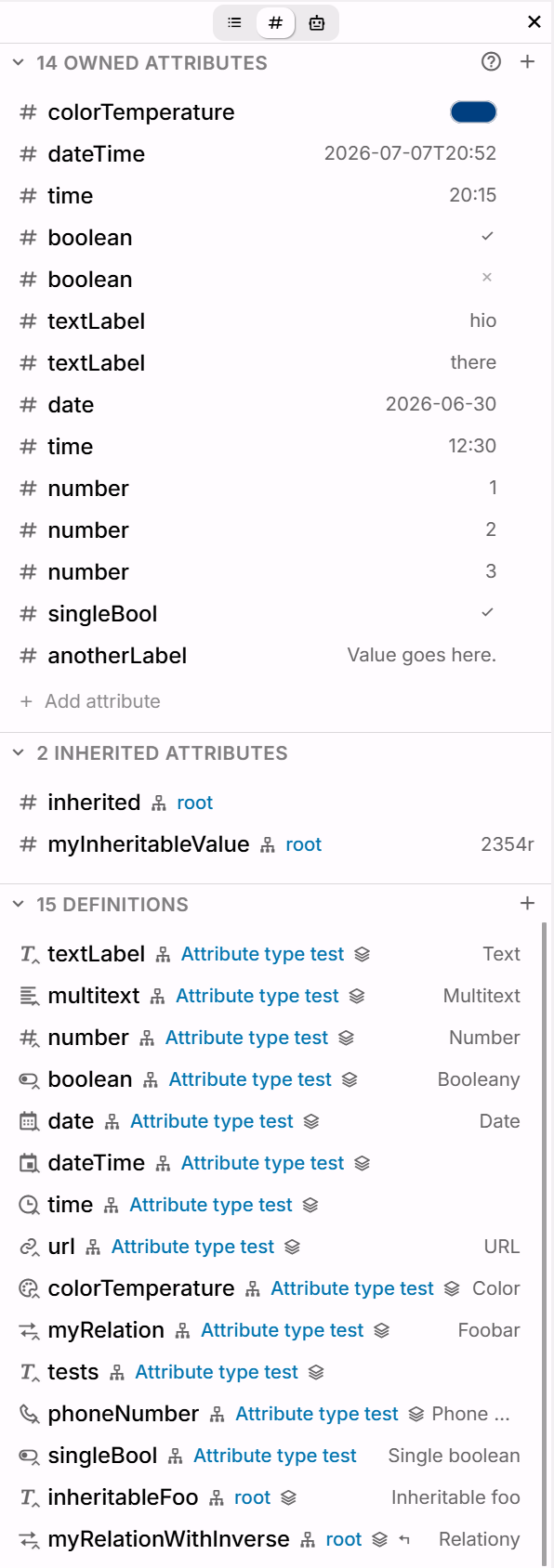
The attributes tab provides a more graphical way to view and edit attributes.
Sections#
The following information is displayed in sections:
- Owned attributes, contains a list of the attributes that belong to this note.
- Inherited attributes are attributes that apply to the current note but come through Attribute Inheritance.
- Definitions describe the type of attributes and are used in Promoted Attributes and Table collections.
Owned attributes#
Every item is structured as such:
- The icon of each item indicates whether it's a label or a relation (link to another note).
- The first text is the name of the label.
- The value of the attribute is displayed after the name, if present.
- The value is shown in a graphical way: a relation's value is a clickable note link; a color label shows a color chip.
System attributes (that have a special meaning in Trilium) show a small cog near the icon and are grouped separately from the user-defined ones.
Interaction:
- Clicking on the item (apart from the value and links) reveals a dedicated popup where the name, value and Attribute Inheritance can be defined.
- The value of the attributes can be edited in-place:
- The input box follows the type defined in a corresponding label definition (date, color, dropdown, numbers), as well as for system attributes that have a specific type (e.g.
color). - For labels, clicking on the value edits its in-place.
- Press Enter to confirm or click outside the input box, or Esc to dismiss.
- For multi-line text, Ctrl+Enter confirms whereas Enter creates a newline.
- For boolean values, clicking on the checkbox will toggle its state.
- For labels without a value, a value can be added by clicking on the No value text which appears while the mouse is hovered on the item.
- For relations, there is a dedicated pencil button instead.
- The input box follows the type defined in a corresponding label definition (date, color, dropdown, numbers), as well as for system attributes that have a specific type (e.g.
- An attribute can be deleted by pressing the X button to its right, which only appears while hovered. A confirmation screen is displayed first to ensure the attribute is not accidentally deleted.
Attributes can be added in two ways:
- A new label, relation or attribute definition can be added from the + button near the title of the section. This shows the full detail popup.
- To quickly add a label or a relation directly from the sidebar, click the Add attribute item at the end of the list.
- The name field will be focused first. By default, a label will be created instead but it can be toggled to a relation by typing ~ or pressing the icon (similarly, typing
#will switch back to a label instead of a relation). - Once the name is filled, press Enter to continue to the value. Type in a value if desired and then press Enter again to create the attribute.
- Clicking outside the editor will also create the attribute, but only if a name is specified.
- The name field will be focused first. By default, a label will be created instead but it can be toggled to a relation by typing ~ or pressing the icon (similarly, typing
Inherited attributes#
Inherited labels or relations are shown in the same fashion as Owned attributes.
The only differences are:
- To the right of the inherited attribute there is a link to the note where the attribute comes from, as well as an icon to indicate that it's inheritable.
- Clicking on an inherited attribute will reveal the same popup as owned attributes, but it is not editable. To edit it, first navigate to the note where the attribute is defined.
Definitions#
For attribute definition (see Promoted Attributes):
- The icon indicates the type of the attribute (text, number).
- If an attribute is promoted, it has a small chevron icon overlaid on top of it.
- The name indicates the name of the attribute it defines (without the
label:orrelation:prefix). - To the right of the name a short summary is displayed which indicates the display name (alias), whether it has multiple values or an inverse relation.
- Clicking on a definition reveals a popup, where the name, type, display name and other aspects can be configured.
- A new label or relation definition can be added from the + button near the title of the section.
- For inherited definition, there is a link to the note where the definition comes from, as well as an icon to indicate that it's inherited.
Mobile#
The attributes can also be edited visually on mobile, but not as part of the sidebar. Go to Note buttons and select Note attributes.